
|
 |
6 AI tools for the people still doing everything in ChatGPT
Because one chatbot is a tool, six is a workflow.
|

| |||||||||||||||


Hey friends 👋
If you’re using AI every day and feel like you’re getting less out of it than you should be, you’re not imagining it.
Most people I chat with are running their entire workflow through a single chatbot. That’s fine for asking questions, but it’s not a workflow.
The real power comes from combining the right tools and knowing when to reach for each one.
My own stack keeps shifting. New models, new launches, new updates every single week. But six tools have stuck. They’re the ones I open every day, the ones I can’t work without.
Here’s what you’re getting:
The 6 AI tools running my week
The exact prompts, use cases, and setups I use for each
Plus six months free on the one I use most
Let’s get into it.
1. Claude Opus 4.7 + Adaptive thinking
What I use it for: research, writing, email drafting, knowledge work, anything that needs a brain.
I’ve been a Claude user consistently now for over two years. It began with Sonnet 3. I used it for some, but not all, knowledge work tasks. Over that two-year period, Claude has evolved into something different entirely and has become my go-to LLM whenever I have a question or task to complete.
The honest reason for this is feel. ChatGPT, Gemini, and Grok still feel a little sterile to me. The outputs have a slight lifeless tilt where you can tell a machine wrote them. Claude has something the others don’t, which I’d describe as a real soul. Sure, it might have “it’s not about X, it’s about Y” across every few sentences, but you can see the thoughtfulness in how Anthropic trains these models, showing up in the output.
The current frontier model is Claude Opus 4.7. I default to it for almost everything, and I always have adaptive thinking toggled on.
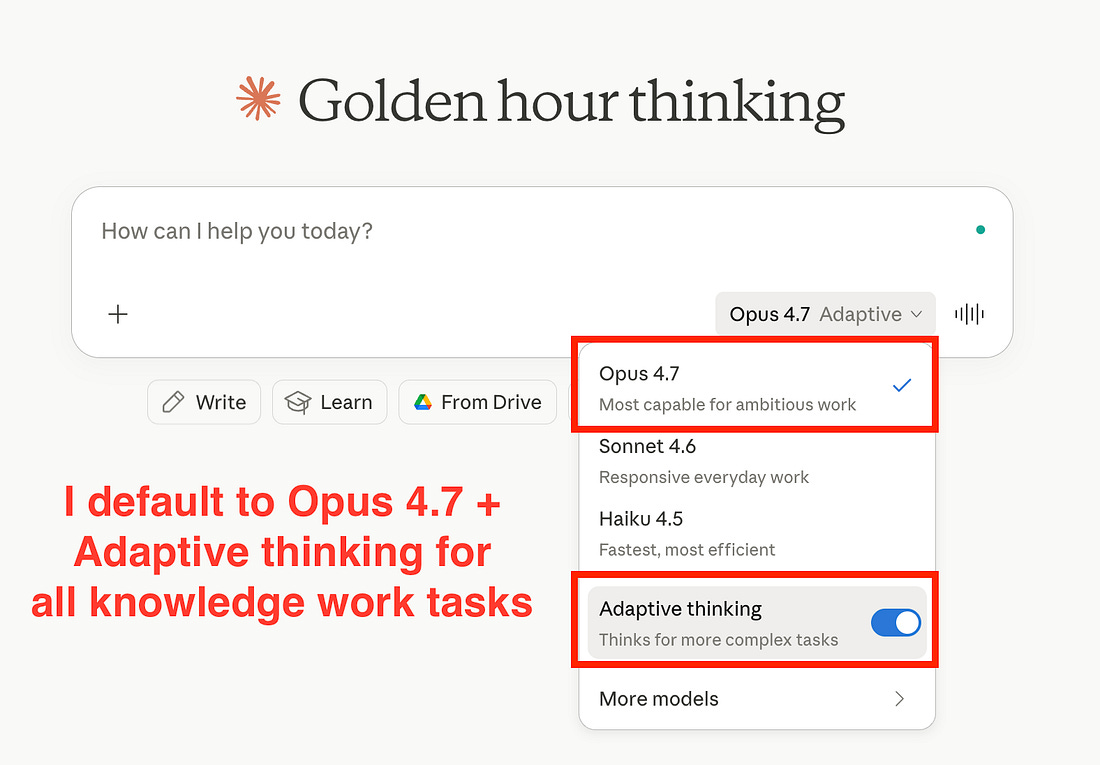 |
Adaptive thinking is Anthropic’s reasoning mode. Instead of you setting how hard the model should think, Claude decides on the fly based on the complexity of your request. Therefore, you’d expect simple questions to get a fast response when harder problems trigger deeper reasoning.
I’ll be honest, even with adaptive thinking on, Claude sometimes skips the reasoning step entirely on questions it thinks are simple. This creates a sub-par output. The difference comes down to the specificity of your prompts.
These are the five I use most (where necessary, I append a version of this at the end of my prompts):
Engage deep think mode. This is the time where you summon all
your power and execute flawlessly. Go.
Think carefully and step-by-step before responding. This problem
is harder than it looks.Before you answer, walk me through your reasoning. Identify any
assumptions you're making, then revise the answer if any of them
look weak.Suggest three different frameworks I could use to think about
this. Explain what each prioritises and what each might miss.
Then pick the strongest one and answer through that lens.Take your time on this. I'd rather have a slower, well-reasoned
answer than a quick one.Where Claude pulls ahead of the rest of my stack: when it’s connected to my Google Workspace. I can ask it to read an email thread in Gmail, identify what someone is asking, and create a draft reply in my voice in the exact thread I’m referencing.
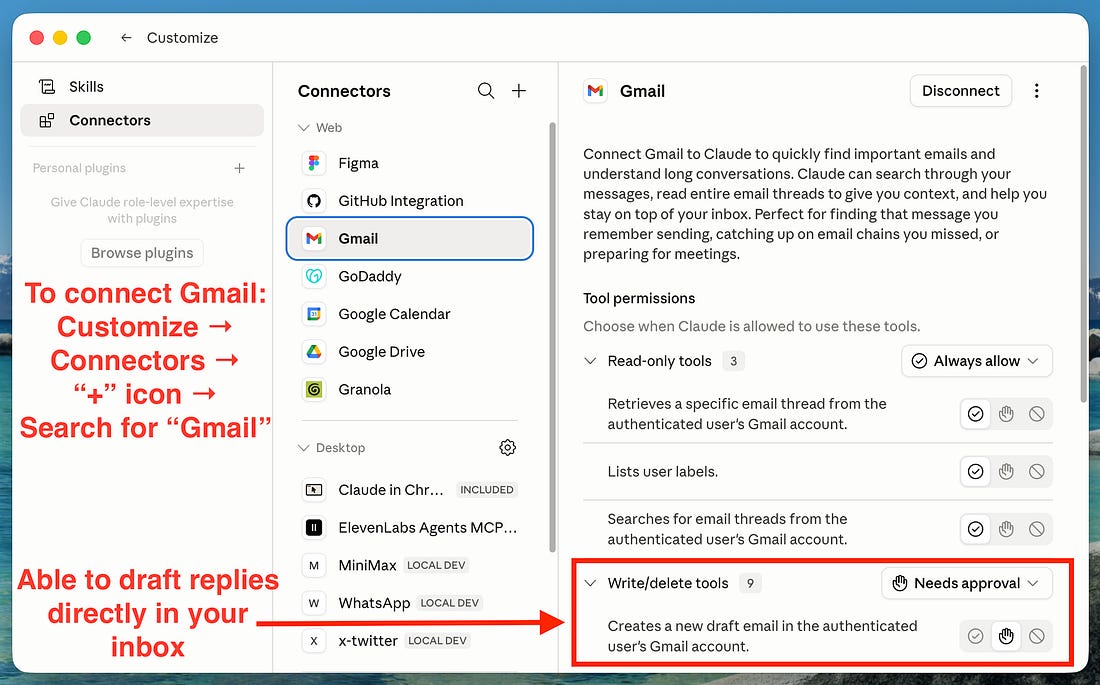 |
My favourite setup with Claude is via a single core chat using the Claude Desktop app. As you can see in the image above, I have a lot of local MCP tools connected that enhance Claude’s capabilities. The “x-twitter” tool, for example, is able to pull X posts and analysis from post replies if I’m doing some deep research.
These MCP tools can’t be used in the web app, which is why I often default to Claude desktop. If I’m working through a really tough problem, I’ll have a few additional Claude chats open in the web app. At any one time, I’m running 1 (if it’s a focused task) to 5 chat windows, exploring different angles/adjacent tasks to a core goal.
A question to ask yourself: Most people prompt Claude like they're searching Google. What would change if you prompted it like you were briefing a senior colleague?
2. Gemini Live
What I use it for: real-world questions where the answer is something I’m looking at, not something I’m typing about.
Gemini Live is the tool I underestimated the most and slept on for the longest. It’s a voice-and-video mode where you point your camera at something and have a conversation about whatever you see.
Start by downloading the Gemini app. You can enter live mode in just a few taps.
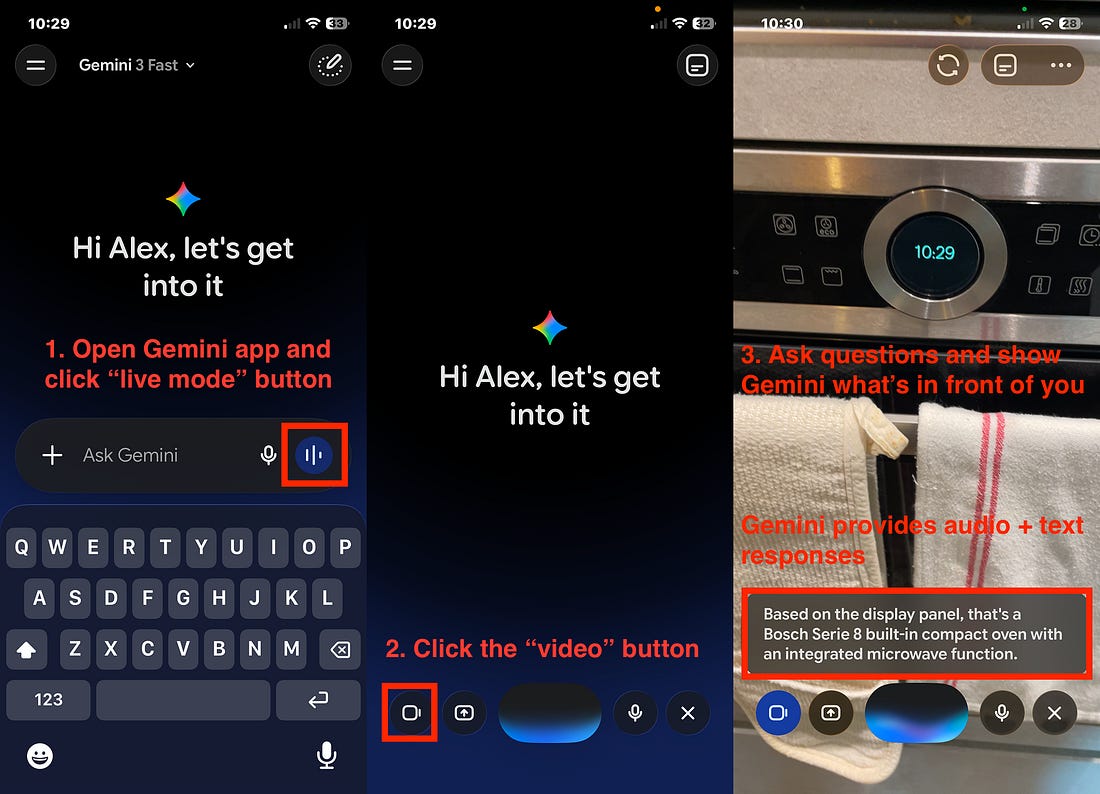 |
My favourite use cases have been the unsexy ones. For example, I recently moved into a new apartment and couldn’t make sense of half the symbols on our oven's front panel. Instead of digging out the manual, I opened Gemini Live, pointed the camera at the display, and asked what each function did. Gemini identified the model immediately, walked me through the symbols one by one, and recommended the right setting for what I was cooking. The whole thing took about 3 minutes.
Another great example was last month, when my washing machine gave me an error code. I pointed Gemini Live at the display and asked what to do. It told me how to resolve it while I was holding the phone, showing different angles and parts of the washing machine.
Outside of home admin, I see huge applications for this to solve tasks like homework problems or even to ask about prescription labels. The opportunities are endless for this multimodal interface coupled with instant feedback.
I think we’ll see this exact pattern show up natively in Siri and on hardware devices over the next couple of years.
A prompt to try: open Gemini Live, point the camera at something you’ve been putting off (a settings menu you don’t understand, a recipe you’ve never made, a bike repair you’ve been avoiding) and just say “Walk me through this.”
A question to ask yourself: What problems in your day are you solving with text when the answer is really sitting in front of your camera?
3. ChatGPT Images
What I use it for: thumbnails, outputs that include images of real people, branded report visuals, and infographics.
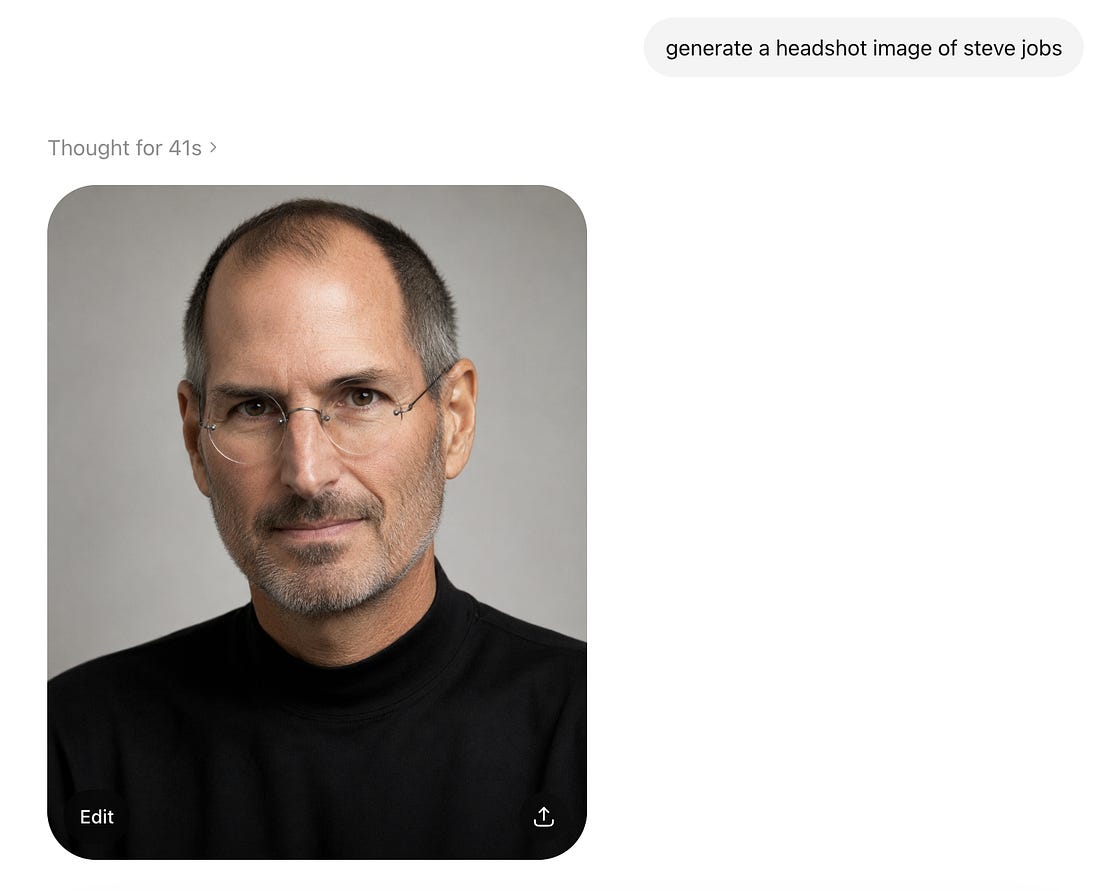
In my experience, ChatGPT Images is the best image model on the market right now. I wrote a full deep dive on it last month. Two things set it apart from Nano Banana 2.
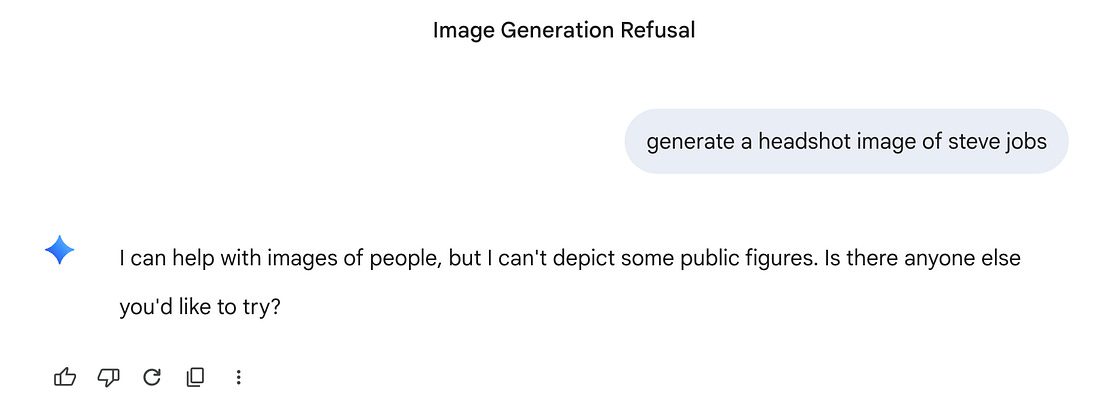
First, it handles real people. Most image models have guardrails that block named public figures, even if you provide a reference image. ChatGPT Images will generate a recognisable, photorealistic version of someone from just their name. Google’s Gemini Nanao Banana will refuse.
 |
 |
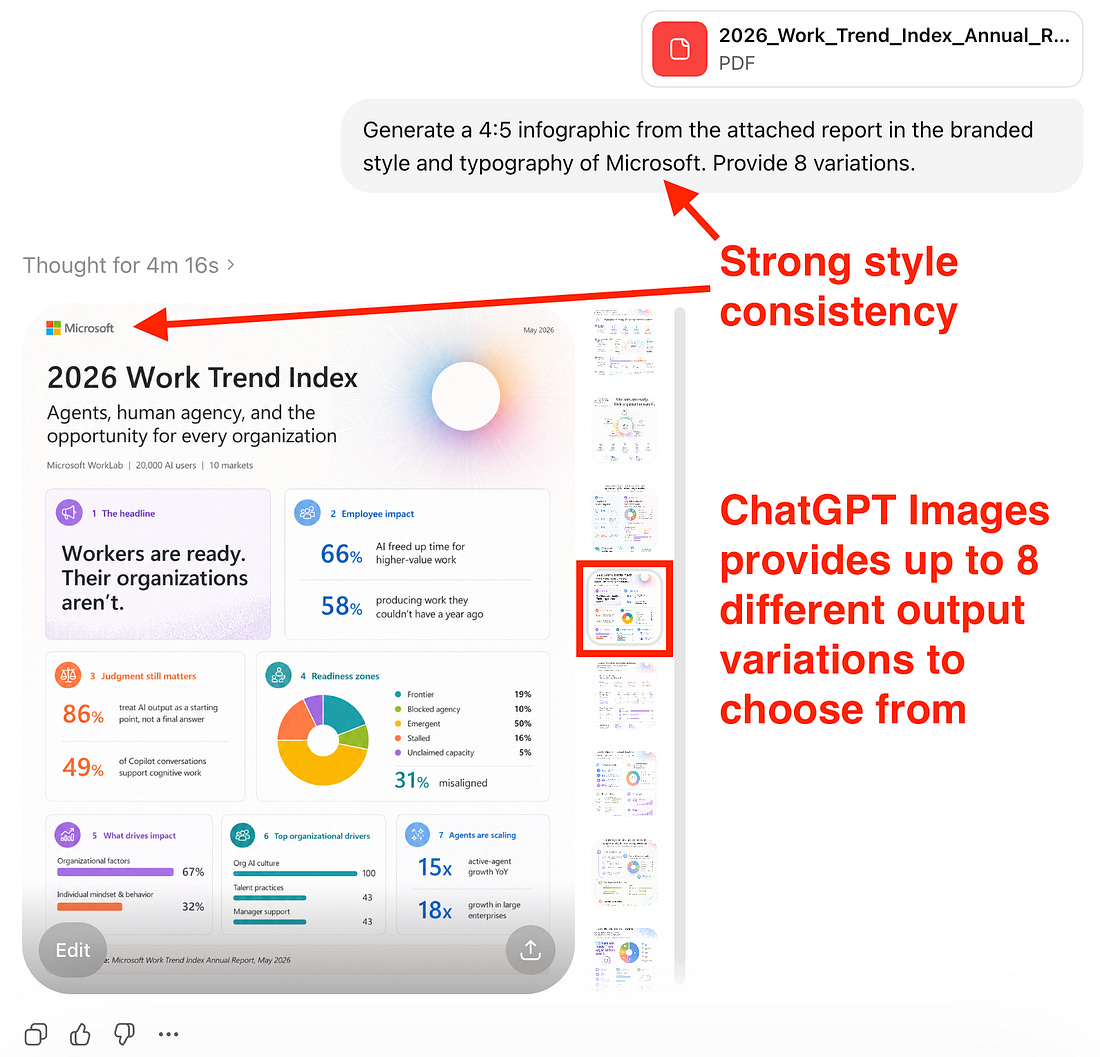
Second, it can turn any report into a designed infographic. I provided the same report to both models, and these were the outputs.
 |
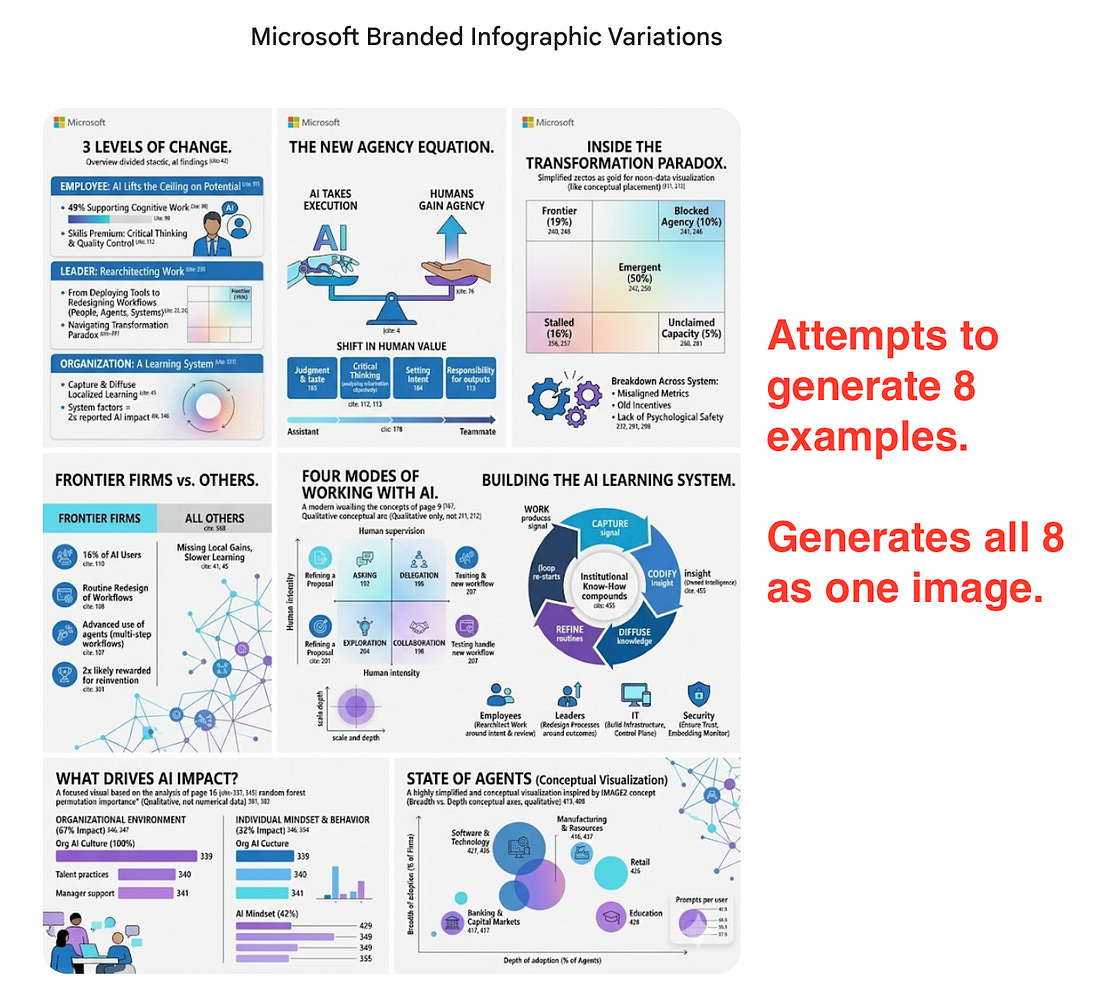 |
An immediate tell of Nano Banana is the style of the output. Its default has a cartoon feel, whereas ChatGPT Images knows how to mirror the specified branding style.
Something else I do with ChatGPT images is I give the output back to Claude Opus 4.7 with the original report and ask it to flag any mismatches or hallucinations.
Claude is the LLM “judge” that marks ChatGPT Image’s work. I then keep iterating until it’s correct. I find this typically takes 2 to 3 passes.
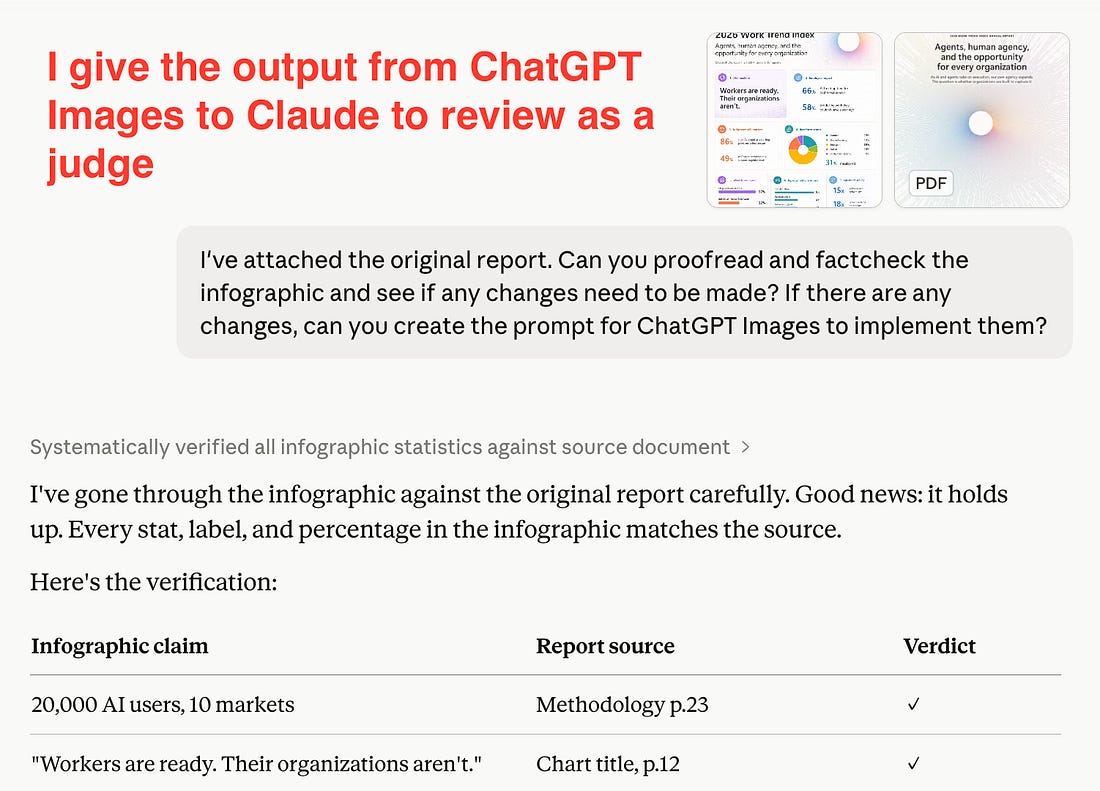 |
The workflow loop: ChatGPT Images generates → Claude reviews → ChatGPT Images iterates. This has been the real unlock here, as you get to use each model for what it’s best at.
Two things I’ve learned:
Less is more in the prompt. Describe the outcome, hand it the reference material, and let it make the creative call.
It’s brilliant at iteration once you’ve got something on the page. “Change this word, swap this colour, move the logo.” That’s where it shines, especially when combined with using the select tool.
A prompt to try:
Generate a 4:5 infographic from the attached report in the
branded style and typography of [company name]. Provide 8
unique variations.
Then paste the output into Claude with the original document, and see what you get back.
A question to ask yourself: Where are you paying for design quality you could now generate in five minutes of conversation? And where will a human designer still beat AI for the work that actually matters?
The next three tools are the ones I’m joined at the hip with. Together, they’ve quietly replaced much of what I used to do manually: typing, taking notes, transcribing.
I've worked directly with one of them to get every Signal Pro member 6 months free. Details below.
4. Wispr Flow
What I use it for: every piece of text on my computer. Emails, Slack messages, WhatsApps, prompts to Claude, this newsletter draft. I dictate it.
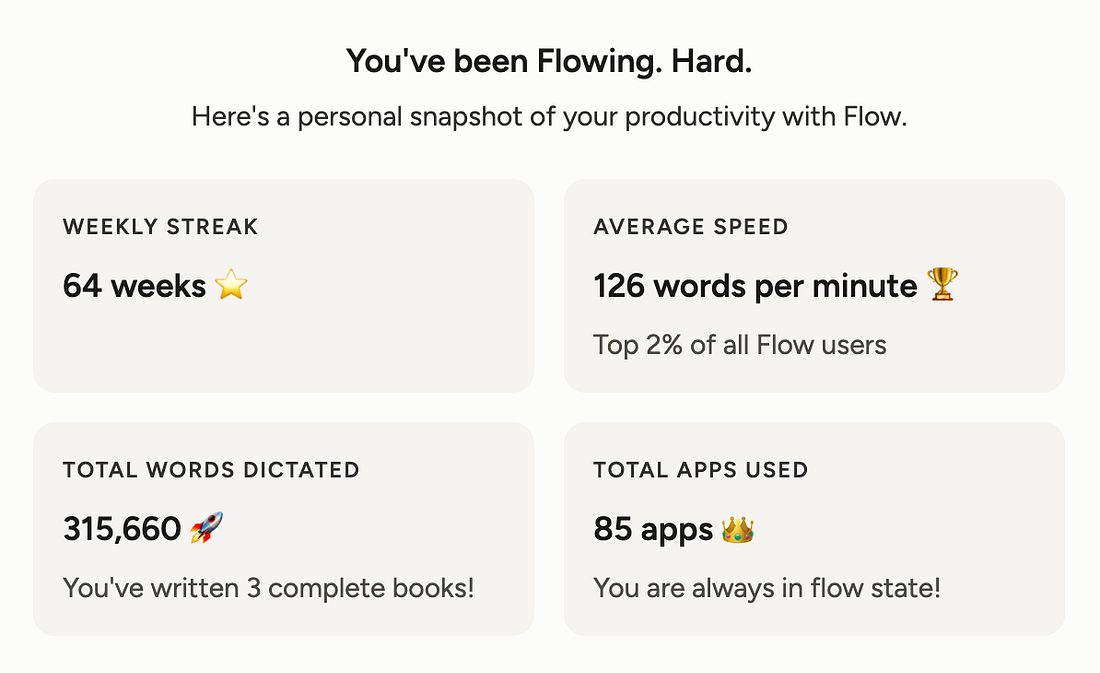
Wispr Flow is the reason I rarely type anymore. I’ve been using it for 64 weeks straight, and dictated over 315,000 words across 85 apps.
 |
It’s a voice dictation tool that lives in the background on your machine. You hold (or double-tap) your Fn key, speak, and release (or tap again). It transcribes what you said, strips out the ums and ahs, applies sentence structure, formats line breaks for emails, and inserts the text wherever your cursor is sitting. It works in every app.
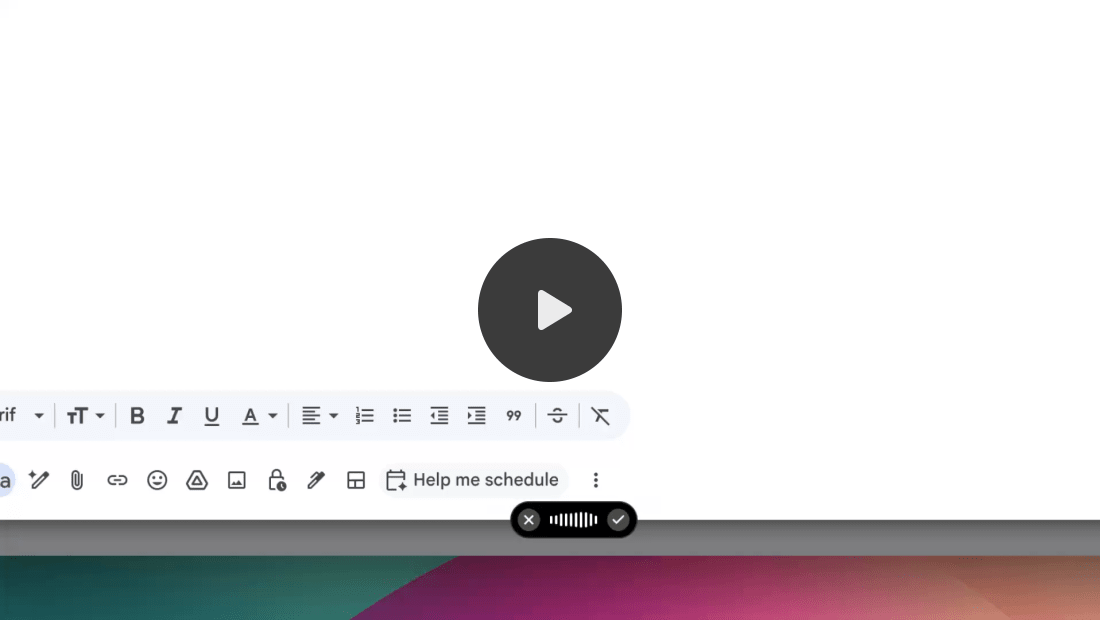
This makes Gmail’s built-in AI reply suggestions completely obsolete. The suggestions are generic and don’t sound like you. Wispr Flow does, because the words are literally yours. I just say “Hey Lauren, thanks for the email, really appreciate your time today and hope you have a wonderful weekend, best, Alex”, and it lands as a properly structured reply with all the necessary line breaks.
The thing I didn’t expect was how much faster the whole day got. I’d estimate I save an hour every working day. Voice is roughly 4x faster than typing.
I do also think that there’s a bigger pattern here. Kids in schools are already prioritising typing over handwriting. I think over the next decade, we’ll see voice quietly replace typing in the same way. Writing will become the primal, deliberate format we reach for when we want to think. Typing will be remembered the way we remember dial-up. Wispr Flow is a way to start moving in that direction now.
Six months of Wispr Flow Pro, free
I’ve worked directly with the team at Wispr Flow to get every Signal Pro member six months of Pro free (worth around $90). Unlimited words, Command Mode, full feature set.
To claim:
Reply to this email and tell me you’d like the code
I’ll send you back a personal code (one per member, redeemable once)
Redeem it one of two ways, depending on whether you’re new to Wispr Flow or already have an account:
New to Wispr Flow: Use the signup link I’ll send you alongside your code. The promo auto-applies, and you’ll see a “6 months free” confirmation message during signup. Download the app, and you’re in.
Already have a Wispr Flow account: Open the Wispr Flow app, click Upgrade to Pro, scroll down to Add promo code, paste your code and click apply. You’ll see “You got 6 months free” appear before checkout.
Either path takes you to Stripe checkout. You’ll need to add a card to validate the trial, but you won’t be charged for 180 days. Worth setting a calendar reminder a few days before the trial ends if you’re unsure you’ll keep it.
If you only act on one thing in this issue, make it this. I’ll be genuinely surprised if you don’t keep using it after the six months are up.
A question to ask yourself: How much of your day is typing things you could just say?
5. Granola
What I use it for: notes from every meeting, call, keynote, or event I attend. On my laptop for work calls, on my phone when I’m out.
Granola is a meeting notes app that records and transcribes whatever you’re in, then produces clean, structured notes you can search and share. The reason I use it over the alternatives is two-fold.
It runs natively on your devices. No clunky hardware or extra device to charge. It’s an app on your phone and your laptop, which is where the conversation is happening anyway.
It plugs into Claude through MCP. This is where Granola gets super powerful. Once you’ve connected the Granola MCP to Claude Desktop, you can ask Claude things like “pull up the notes from my call with [client] last Tuesday and draft a follow-up email that picks up where we left off.” Claude reads the Granola notes directly, no copy-pasting required.
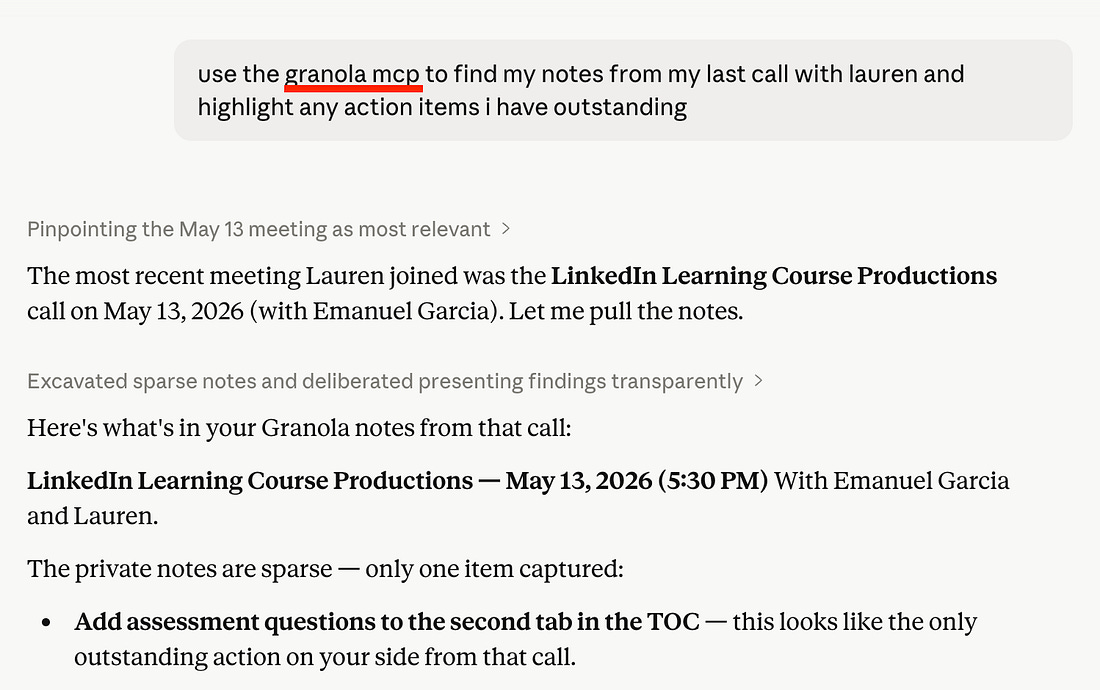 |
This is the moment connectors stop being a novelty and start earning their value. Your meeting context flows into your AI, which flows into your inbox. The whole loop becomes totally frictionless.
A prompt to try inside Claude after connecting Granola:
Pull up my Granola notes from the last two weeks. Identify any
commitments I made that I haven't followed up on yet, and draft
the follow-up messages for each one.
A question to ask yourself: How many decisions, commitments, or ideas are you losing every week because they happened in a meeting and never made it into your written record?
6. ElevenLabs
What I use it for: voiceovers for The Sunday Signal (every single issue), and transcription of any audio or video I need to work with.
ElevenLabs has two features I rely on weekly.
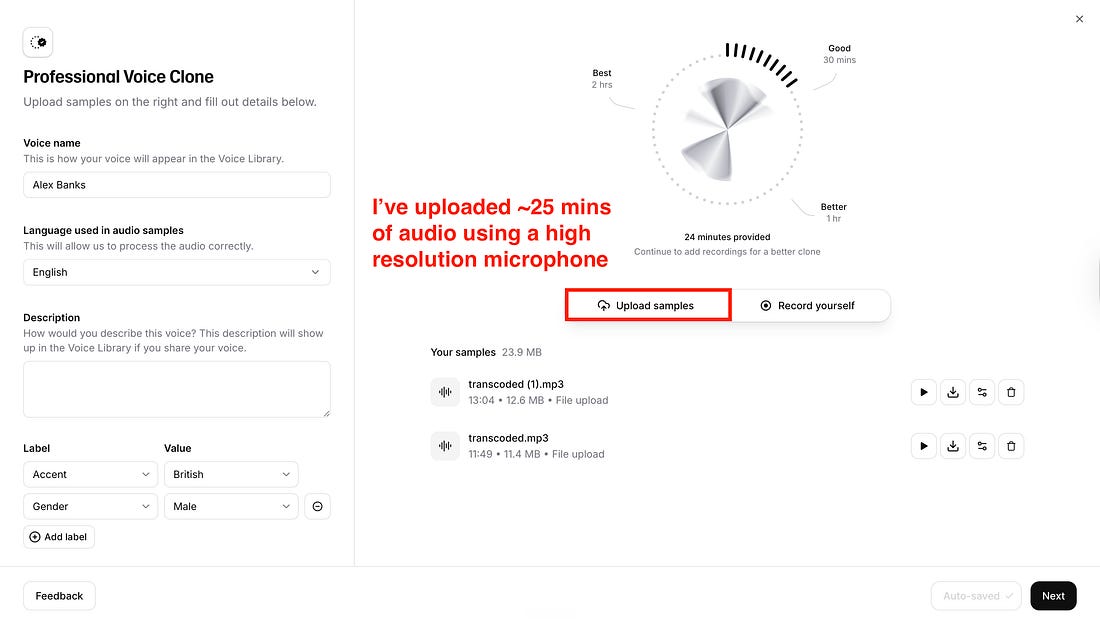
Voice cloning. I uploaded ~25 minutes of clean audio from my microphone, and ElevenLabs trained a voice model that’s genuinely hard to tell apart from me. I now generate the audio narration for every Sunday Signal in Studio mode. It saves me ~30 minutes a week of recording and cleaning up takes.
If you want to test how good this is yourself, scroll back to my last Sunday Signal newsletter issue and listen to the audio at the top. See if you can spot if it sounds like AI.
 |
Transcription. Drop in a video or audio file, and ElevenLabs will give you a clean transcript with timestamps, ready for subtitles or further analysis. I’ll often hand the transcript over to Claude for summarisation or to find quotable moments.
Another thing that I’m watching closely in ElevenLabs is the Agents platform. At their event last month in London, you couldn’t pick up the merch top until you’d completed a phone call with one of their voice agents. The whole conversation was genuinely indistinguishable from a human. For high-volume, low-complexity customer service (order updates, appointment rescheduling, basic FAQs), voice agents will be everywhere within 12 months. The human-in-the-loop premium tier (for the hard, empathetic, escalated cases) will become the higher-value role. If you want to go deeper here, I created a guide to building your own voice agent.
A question to ask yourself: Is there a piece of audio in your workflow you’ve been putting off because it’s a hassle to deal with? A meeting recording, a podcast you wanted to extract a quote from, or a video script you need to caption? Run it through ElevenLabs transcription this week and feed the output to Claude.
What to do this week
In the Signal Pro Slack, share in the #workflow-showcase channel:
Which of the six you adopted this week
What it unlocked in your workflow that wasn’t possible before
Any tool you’ve added to your own stack that should be on this list
If you’re claiming the Wispr Flow code, reply to this email and lock it in today. I’ve found that 6 months go way faster than you think.
|
💡 If you enjoyed this issue, share it with a friend.
See you Sunday,
Alex Banks
Invite your friends and earn rewards
| ||||||||||

